Ever wondered if you could get a short-range wireless network (for your home) without a wireless router? Well, it is possible. Here’s how:
Things you need
- A home computer/laptop with an Ethernet port and wireless card (this computer will then double up as a wireless router).
- Internet connection that terminates at your home computer/laptop
- Client computers/laptops with wireless cards
- Note that the instructions here are for Windows XP, other operating systems will probably have similar ways to accomplish what I am giving you instructions for.
Basic Idea
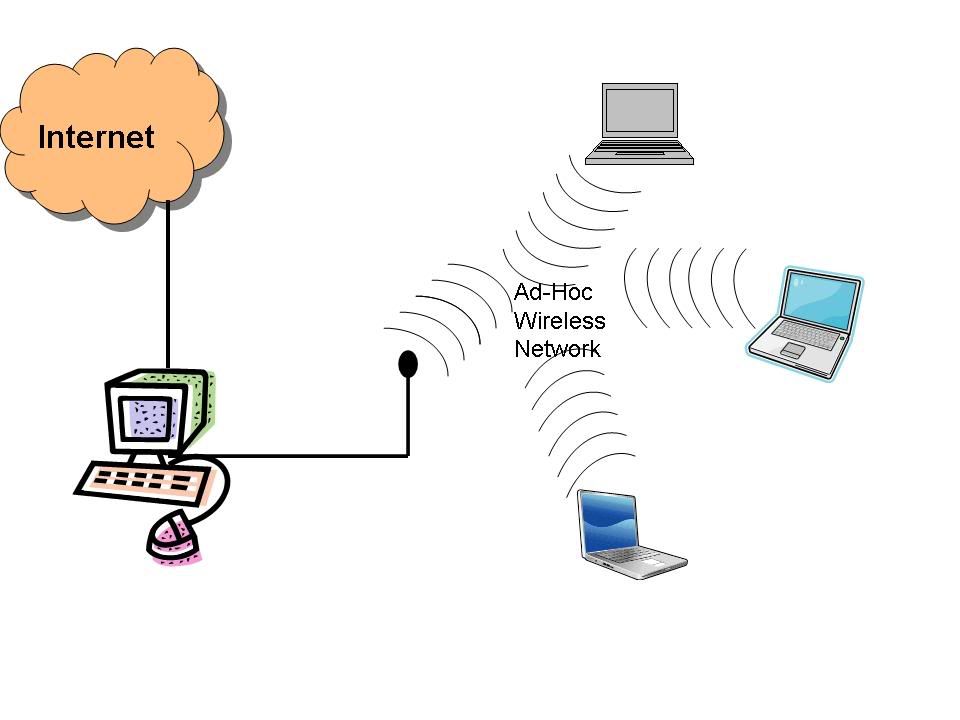
The basic idea is to set up an ad hoc wireless network among all the computers/laptops so that each one can communicate with the other through the wireless network. Now designate one of the computers as a gateway. The gateway computer is connected to the internet its wired Ethernet connection. Get the gateway to advertise itself as the default internet gateway to all other computer in the ad-hoc network. Now all the computers will start accessing the internet through the gateway computer. Thus the wireless network is established.
Something like this:
Detailed Instructions
- Configuring your wireless card on the gateway computer
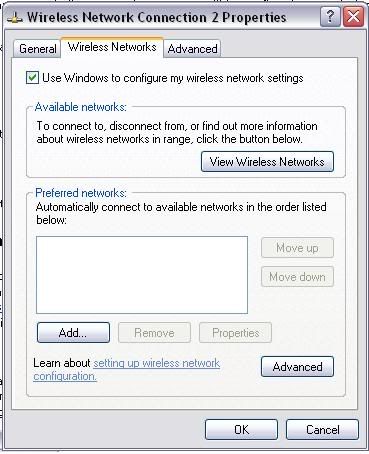
- Go to control panel, switch to classic view and click on Network Connections. This should take you to the list of network adapters on your system. Right-click on your wireless network connection and select Properties.
- Click on Wireless Networks tab in the properties window, and it should look something like this:
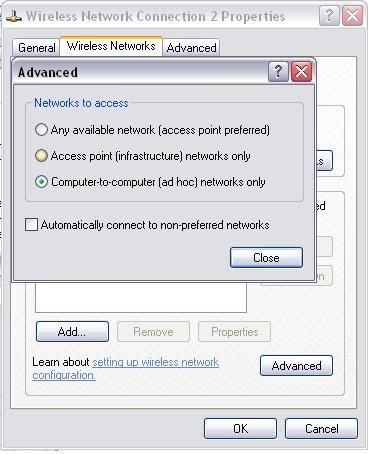
- In this tab, click on the Advanced button right next to ‘Learn about setting up a wireless network configuration‘. You should see a window that looks like this:
- Click on Computer-to-computer (Ad Hoc) networks only, and then click Close.
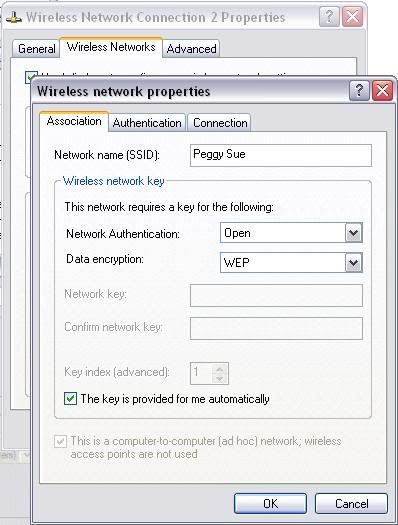
- You should now be back in the Wireless Networks tab of the wireless card properties window. Click on Add button (to add a new ad hoc network). You should see a window that looks something like this:
- Give you ad hoc network the name that you want. I called it ‘Peggy Sue’ in my example. Let the Network Authentication be ‘open‘. You can configure authentication later, if you want. Then, click Ok.
- Configuring the Wired connection on the gateway computer
- Go to control panel, switch to classic view and click on Network Connections. This should take you to the list of network adapters on your system. Right-click on your local area connection and select Properties.
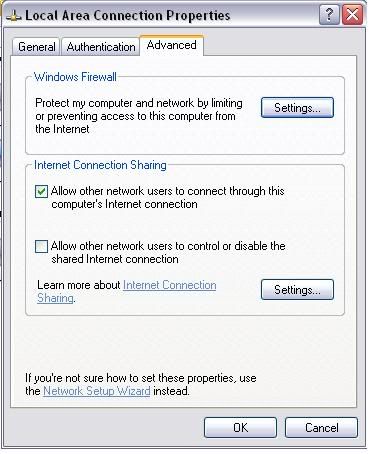
- Go to the Advanced tab which looks something like this:
- Check the box that says ‘Allow other network users to connect through this computer’s internet connection‘. And click Ok.
- Connecting other wireless clients to the network
Your gateway computer is already connected to the internet using a wired connection. We configure the wireless card on the gateway computer as follows:
Now you have a ad hoc wireless network, and a connection to the internet. You have to configure them to talk to each other other so that traffic from the ad hoc wireless network can access the internet. You do so by ‘sharing’ the internet connection as follows:
Now when you right-click on the wireless network connection and click on view wireless networks, you should see something like this:
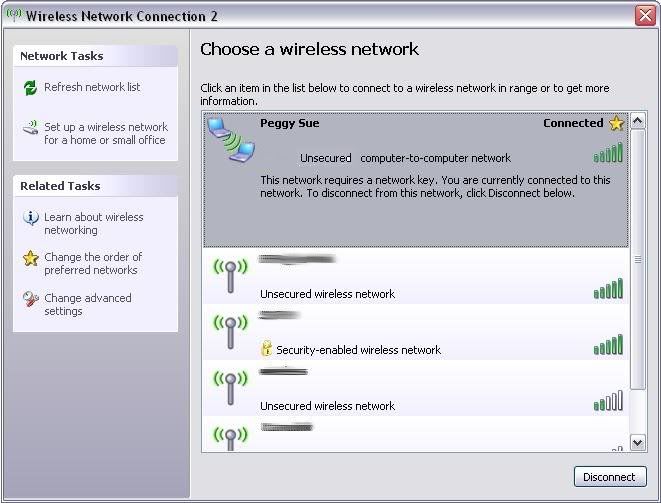
All you now have to do is start up other computers, and connect to the ad hoc wireless network (Peggy Sue) that you just created and you should be good to browse the internet wirelessly!


Comments are disabled for this post